-
FAQs
-
Network Resilience Platform
- Adding Tailscale plugin to NR
- Capturing network traffic with Wireshark on a Gearlinx device
- Default Passwords on Gearlinx Products
- Deploy 3rd party applications
- Deploying S3-compatible object storage to a Gearlinx device
- Diagram: Cloud based Total OOB Management
- Hosting a Ubuntu virtual machine on a Gearlinx device
- How to factory reset an NR series appliance
- How to generate a support report
- Monitoring your network with Cisco ThousandEyes on a Gearlinx device
- NR Included Accessories
- NR serial console port pinout
- NR4400 - Initial network setup "out of box experience"
- NR4400 Secure Boot
- What are the business benefits of using OCI containers?
-
- Articles coming soon
-
Other
-
Duckfone
- Cellular Bands - Duckfone 4
- Default Passwords on Gearlinx Products
- Diagram: Typical Deployment of Duckfone LTE
- Distance Limit for POE with Duckfone
- Duckfone 4 Info LED Description
- Duckfone 4 Introduction
- Duckfone Accessories
- Duckfone Performance Capability
- How to do a factory reset on a Duckfone
- How to generate a support report
- What POE Injector do we recommend with the Duckfone?
-
Zero
-
Gearlinux Firmware
-
Hardware
-
Diagrams
-
Advanced/Expert
-
Containers, Apps and VMs
-
Videos
How to generate a support report
If you are having problems with your configuration or experience with a Gearlinx product and need to contact Gearlinx support, one of the first questions our support staff will ask is for a copy of a recent “Support Report”. You can generate a support report for your offending product by following these steps:
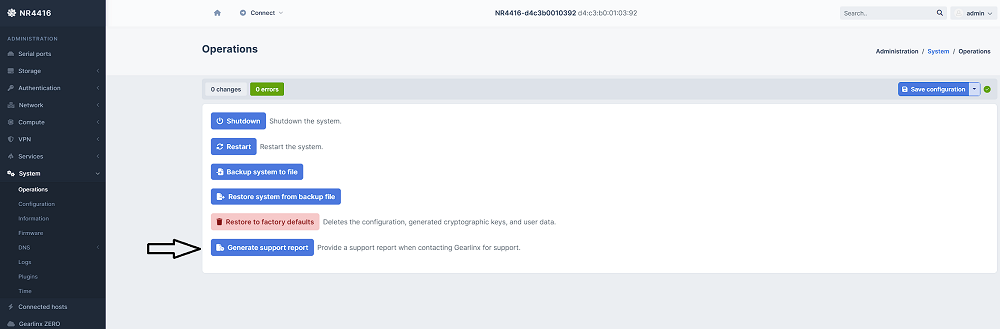
In ZERO or in the device web UI browse to:
System -> Operations -> Generate Support Report
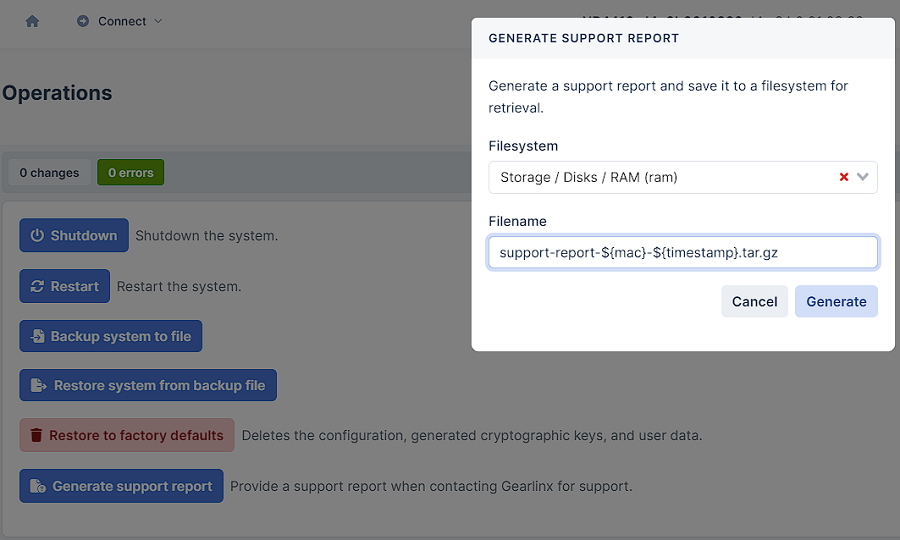
You will be prompted for a location to deposit the support report file. You can use a disk (for example an attached USB key) or the local device storage. In this example we simply use the devices RAM per the screen shot below.
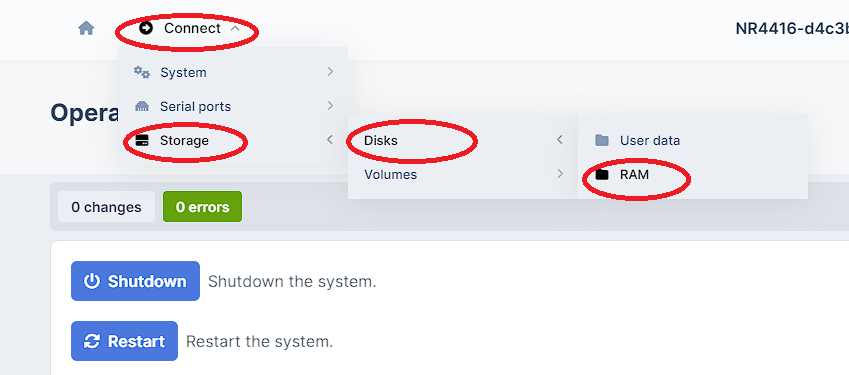
You can then browse to this location from the top “Connect” menu as shown below:
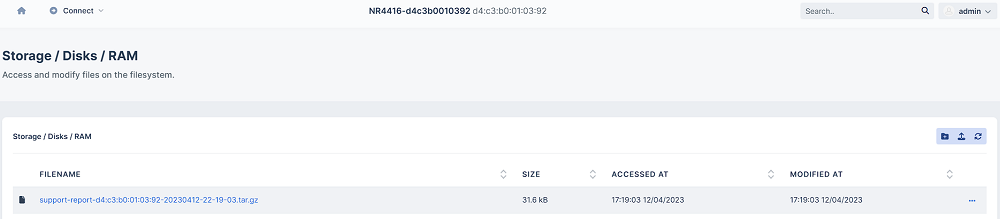
From there you can click and download the file to your local PC for further sharing or distribution as needed.