
NR4400 Quick Start Guide
This guide applies to the NR4448, NR4448-4G and NR4416, NR4416-4G network resilience platforms.
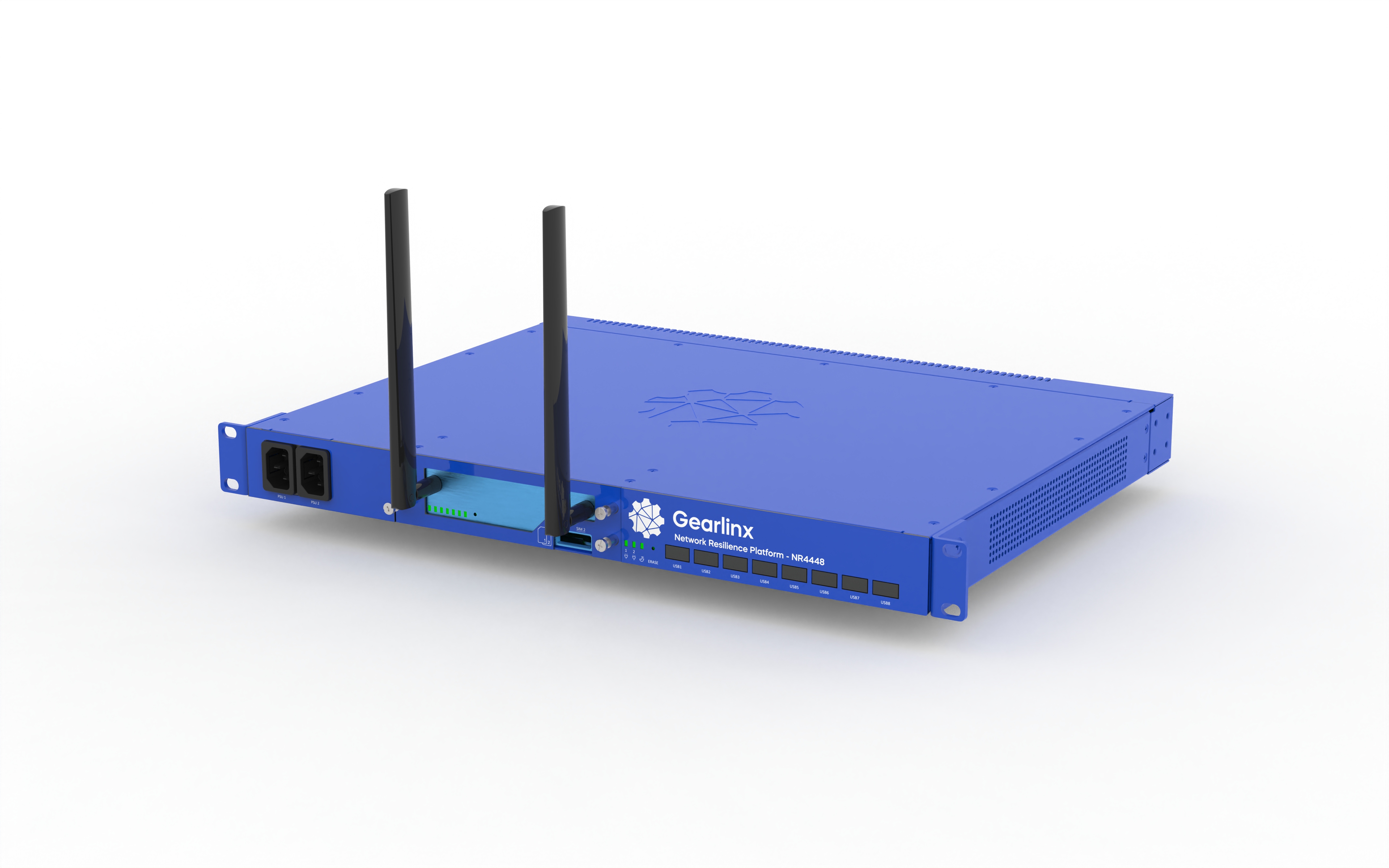
1. Check the kit contents
- NR4400 hardware appliance (NR4416, NR4416-4G or NR4448, NR4448-4G)
- 1 x Rack mounting kit (2 ears, 8 screws)
- 2 x 2m CAT6A RJ45-RJ45, black, straight through cable
2. Assemble and attach the hardware
- Attach rack mounting kit ears to platform if using
- If using a cellular connection (4G/LTE):
- Insert your SIM card into the SIM slot (if not included with Duckfone)
- Attach the cellular antennas to the cellular antenna connectors
- Plug in the NR4400 to mains power using the mains power cords
- Connect the NR4400 platform (NET1) to your main network switch or router with the black ethernet cable
- Attach serial cables or USB cables from the NR4400 to the managed devices as required for your setup
3. Connect to the device
- If using a cellular connection or if your network provides internet connectivity you can continue your online setup via ZERO. This is our highly recommended approach.
- If not configuring via ZERO:
- When a NR4400 device is taken out of the box, its NET1 port will be configured to request an address via DHCP. If the device cannot get a DHCP address, it will use an IPv4 Link Local Address (169.254.0.0/16).
- Once it has either acquired a DHCP lease, or selected an IPv4 Link Local address, it will advertise its hostname using Multicast DNS (mDNS). This means that it will be accessible on the local network via hostname.local, where hostname is the devices model, followed by its serial number. For example: nr4448-0110923000066.local, where the model is NR4448, and the serial number 0110923000066.
- You can access the host via either https or ssh.
- Gearlinx devices also support IPv6. If DHCPv6 or SLAAC is operational on the network, then the device will acquire and IPv6 address via either protocol, and advertise that via mDNS, or it will advertise its link local IPv6 address.
- Default username is “admin”; Default password is printed on the NR4400 label on the base of the unit. Username and password are case sensitive.